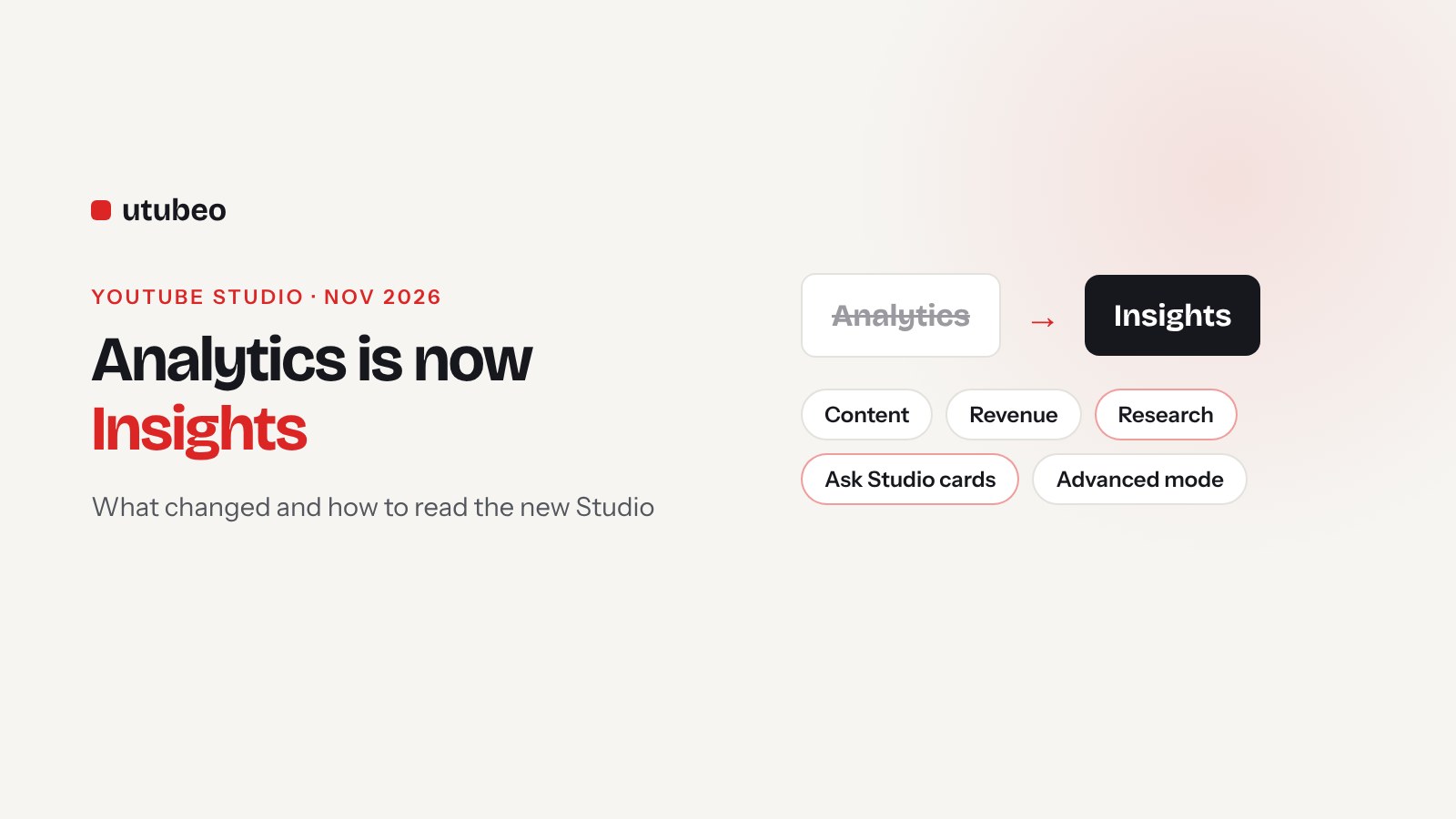
YouTube Studio Analytics Is Now Insights: What Changed in November 2026 and How to Use It
On 5 November 2026 I opened YouTube Studio and Analytics had a new name, a new layout and a tool for spying on outliers in my niche. Here is what changed, with real screenshots, and how I read the new screens for the channels I manage.
Get a free YouTube Ads audit
Aleks reviews your account, tracking and creative — then sends a written action plan within 5 business days.
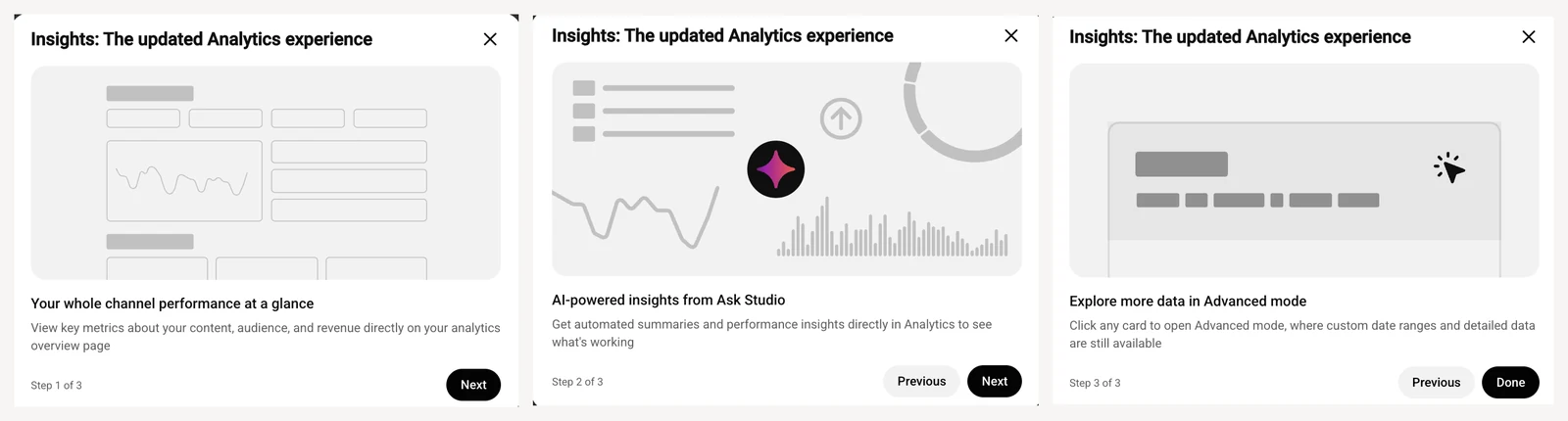
On Thursday, 5 November 2026, I opened YouTube Studio to check a channel I manage and a pop-up stopped me: "Insights: The updated Analytics experience". Three steps, a short tour, and then the screen I've looked at almost every day for years looked different.
YouTube had been testing this redesign since July with a small group of creators. Now it's reaching more channels. If you saw the same pop-up this week, this article walks you through what changed, using real screenshots, and how I read the new screens when I make decisions for clients.
What changed, in short
Your data stays the same. YouTube changed how it's grouped and how quickly you get to the part you need.
| Before | Now (Insights) | |
|---|---|---|
| Name of the tab | Analytics | Insights |
| Overview | Long scroll of separate cards | Grouped cards for content, audience and revenue, each opens its own page |
| Date ranges | Any range on every screen | Quick presets (7, 28, 90 days, this month, last month). Custom ranges live in Advanced mode |
| Ideas for new videos | Trends tab and saved keywords | Research tab with outlier scores and "What my viewers watched" |
| AI help | Ask Studio chat only | Ask Studio summary cards inside Insights (for eligible channels) |
| Saved keywords | On desktop | Being removed from desktop, export them as CSV |
YouTube's tour sums it up in three lines: your whole channel at a glance, AI summaries from Ask Studio, and Advanced mode for detailed data. Let me go through the screens one by one.
The Content page: views, new viewers and subscribers in one place
Click the content card on the overview and you land here. At the top you can filter by Videos, Shorts, Posts, Playlists and Podcasts. Below that is one chart that shows long videos and Shorts as two separate lines, and three small cards: new viewers, regular viewers and subscribers, each split by format.
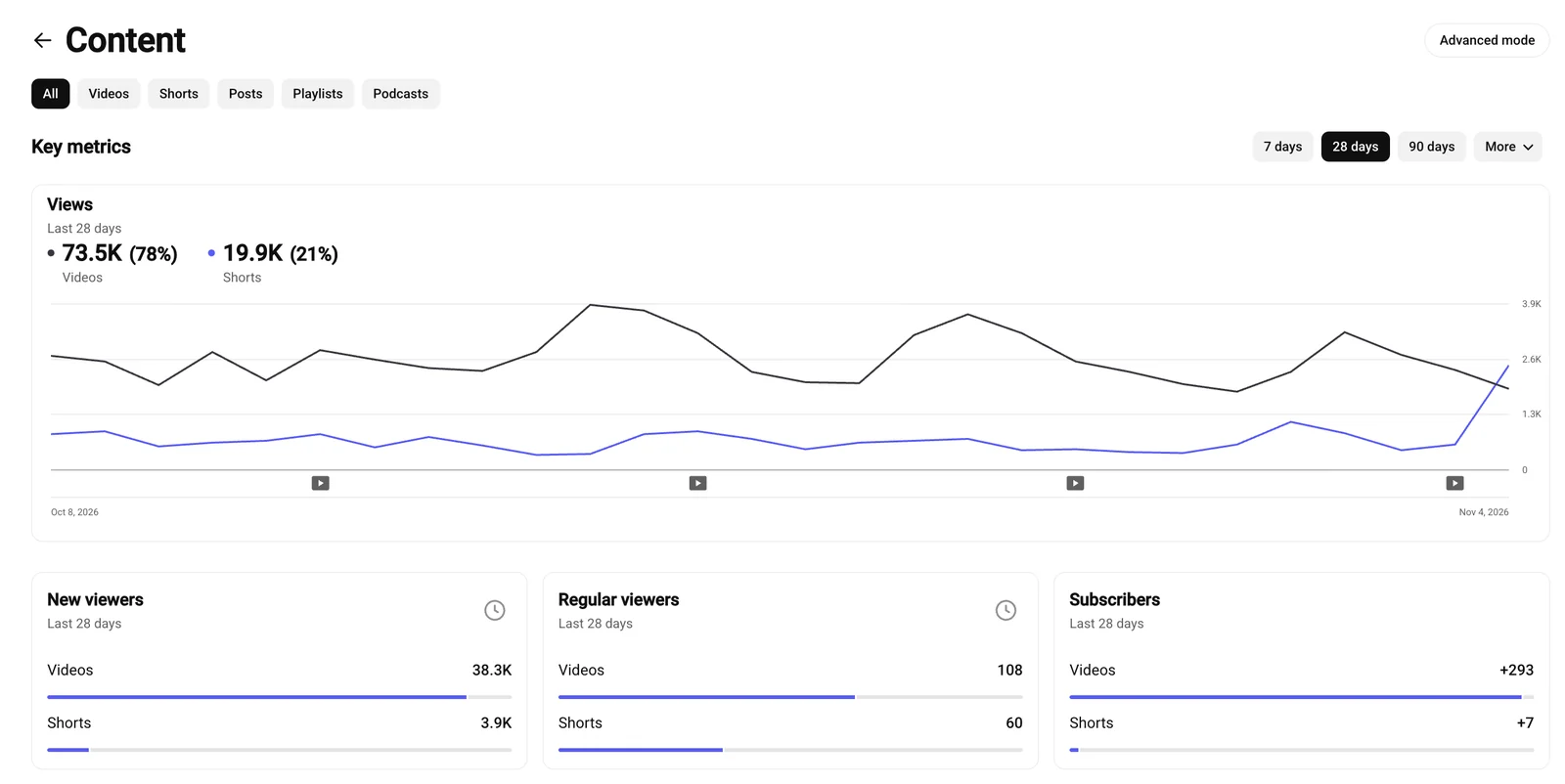
This split is the best part of the update. Look at the numbers in this screenshot. Shorts brought 19.9K views, about a fifth of the channel's views. But Shorts brought only 7 new subscribers, while long videos brought 293. In the old layout you had to dig through two or three reports to see that. Now it's on one screen.
The regular viewers card is the one I watch most closely. Here it says 108 regular viewers on long videos and 60 on Shorts, against 38.3K new viewers. That tells me the channel is good at reaching new people and weak at bringing them back. The next step for a channel like this is series, playlists and end screens that send people to the next video, and fewer one-off topics.
Also notice the blue line at the far right. Shorts views jumped in the last two days. Before anyone celebrates, I check which Short did it and whether it brought subscribers or only views. On this channel, the subscriber card says it didn't.
Not sure what your own Content page is telling you? I read these numbers for clients every month and turn them into a short list of what to change next. See the monthly YouTube channel report, or if Shorts bring views but no subscribers, my Shorts strategy and repurposing service.
The Revenue page: where the money actually comes from
The Revenue page now has filters for each income source: Watch Page ads, Shorts Feed ads, Supers and gifts, and the Affiliate program. Under the chart you'll see small icons on the dates you published a long video or a Short, so you can match a jump in revenue to an upload.
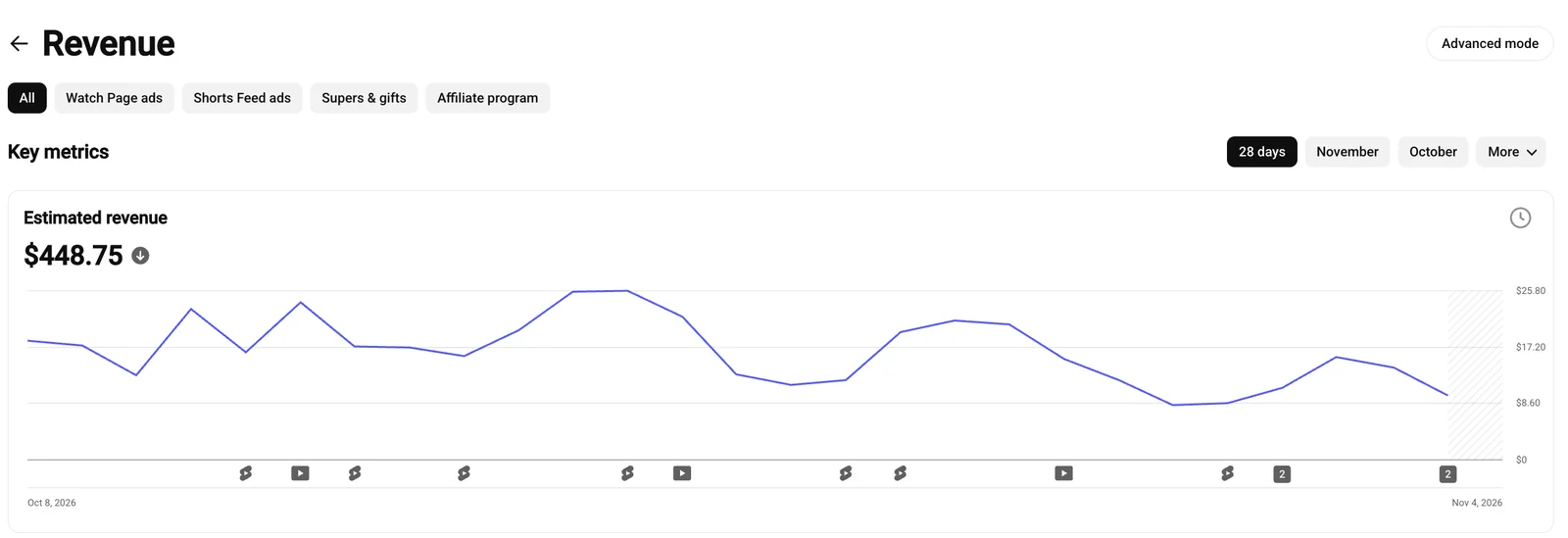
On this channel, estimated revenue was $448.75 in 28 days, between roughly $8 and $26 a day. The peaks line up with long video uploads, and the dips come in the quiet days between them. That's a simple but useful lesson: for this channel, a steady upload rhythm of long videos is worth more than any single viral Short.
The date presets here are 28 days, the current month and the previous month. If you need to compare, say, Black Friday week this year with last year, click Advanced mode.
Making money on YouTube but not sure you're getting the most out of it? A YouTube monetization audit looks at ad revenue, Shorts, memberships and affiliate income and shows where the channel leaves money on the table.
The Research tab: YouTube's own outlier tool
This is the biggest new feature. The old Trends tab became Research, a place to plan your next video by looking at what works for other channels. You can search for a topic or use the filters at the top: Outliers in my niche, What my viewers watched and Recent uploads in my niche. There's also an "Analyze title patterns" button that uses AI to look for patterns in the titles on screen.
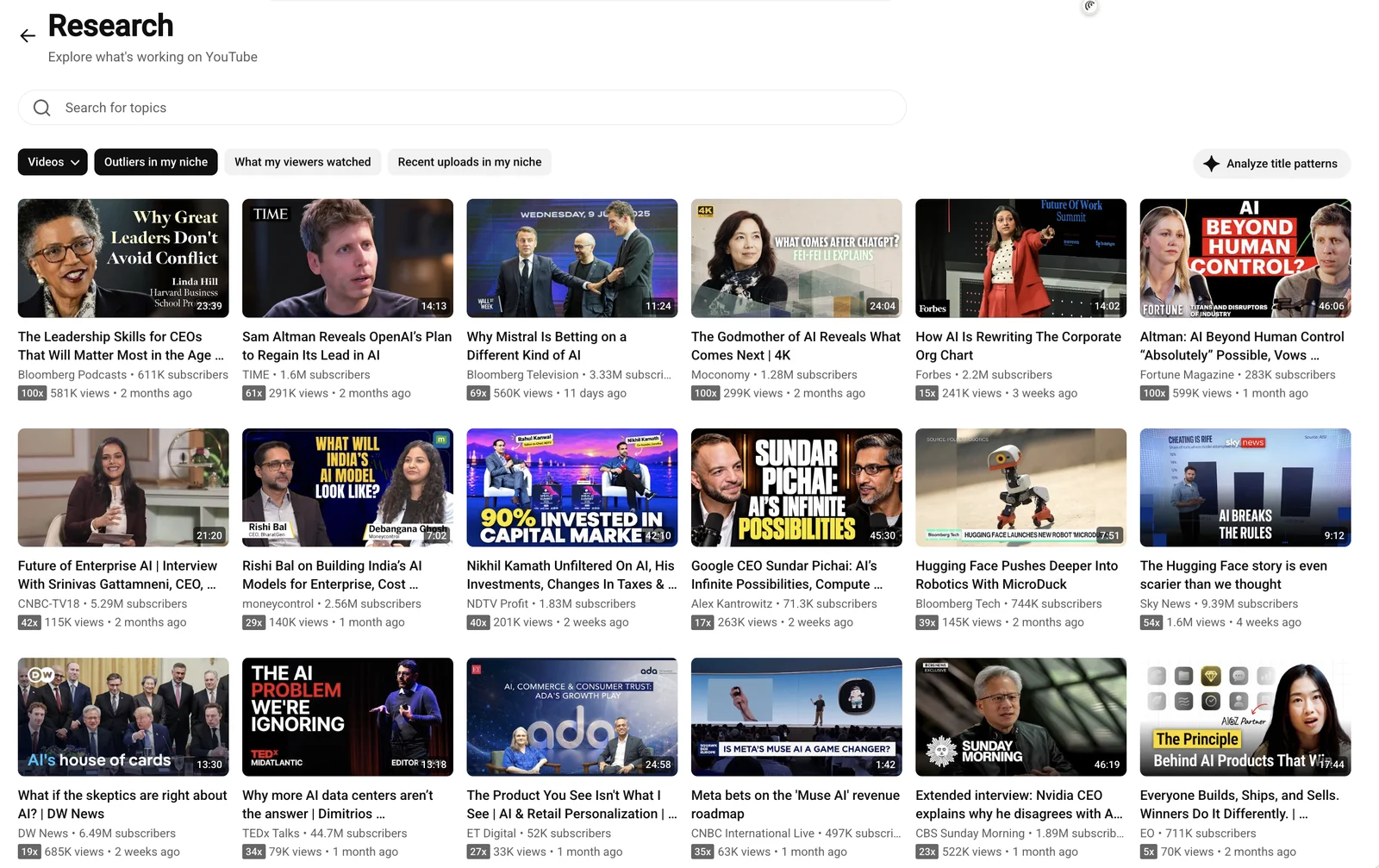
Every card shows the channel's subscribers, the views, the age of the video and a grey label like 100x or 15x. That label is the outlier score. It tells you how much better the video did than the usual videos on the same channel. YouTube hasn't explained the exact formula, so I use it to spot ideas and don't read too much into the exact number.

Here's what I noticed on the first day. For an AI and business channel, "Outliers in my niche" was full of big media brands: Bloomberg, TIME, Forbes, Sky News. Their videos are interesting, but a smaller channel can't copy what a news brand does. So I switched to "What my viewers watched" and to channels closer in size. That's where the useful ideas were, because those are videos my own audience already clicked on.
My simple way to use Research:
- Open "What my viewers watched" first, then "Outliers in my niche".
- Write down five videos with a high score from channels about your size.
- For each one, note the topic, the promise in the title and what the thumbnail shows. Skip anything that only worked because of a famous guest.
- Pick the one idea that fits your offer and make your own version with your own angle.
- Check "Recent uploads in my niche" once a week to see what's starting to move.
Want this research done properly for your brand? My YouTube competitor and market research maps the outliers in your market and turns them into a content plan. If titles and thumbnails are the weak spot, see thumbnail and title A/B testing.
Ask Studio cards: AI summaries inside Insights
If your channel has access to Ask Studio, YouTube's AI assistant, you'll now see summary cards right inside Insights. YouTube's help notes and early testers mention four of them: Channel Summary, Content Patterns, Audience Loyalty and Video Summary. They give you a few sentences in plain language about what's working.
They're handy for a first look, and they save time on a Monday morning. But I've seen AI summaries miss the reason behind a number, for example calling a video a success because of views that came from an ad. So I read the card, then click through and check the numbers myself before I change anything.
Advanced mode: where the detailed data went
Many people's first worry is that the detailed reports are gone. They aren't. Click any card or the Advanced mode button in the top right and you get the familiar view with custom date ranges, traffic sources, retention and all the other reports.
If you run YouTube ads to your videos, this matters. Paid views are counted in your channel totals on the new overview. Before you decide a video "worked", open Advanced mode, go to traffic sources and check how much came from YouTube advertising. I've seen brands make content decisions based on numbers that were mostly paid.
Running YouTube Ads and not sure what they bring beyond views? A YouTube Ads audit checks tracking, targeting and creative and shows what's costing you conversions. If you want it run for you every week, see YouTube Ads management.
One thing to do this week: export your saved keywords
Saved keywords are being removed from desktop Studio. YouTube gives you a few months to download them as a CSV or see them in the mobile app. If you built a keyword list over the years, export it now and keep it in a sheet, so it doesn't disappear with the old tab.
My 15-minute weekly check in the new Studio
This is the routine I now use for the channels I manage. It works for a brand channel as well as for a creator.
| Where | What I look at | What I do with it |
|---|---|---|
| Content, 28 days | Subscribers from long videos vs Shorts | Put more time into the format that brings subscribers, not only views |
| Content, 28 days | Regular viewers vs new viewers | If regulars are low, plan a series and fix end screens and playlists |
| Revenue | Which income source moved, and which upload caused it | Repeat the type of video behind the peaks |
| Research | "What my viewers watched" and recent outliers | Add one or two ideas to the content plan |
| Advanced mode | Traffic sources, YouTube advertising share | Separate paid from organic before judging a video |
What this means for brands on YouTube
For ecommerce, SaaS and AI companies, this update is good news. The numbers that matter for a business channel, like returning viewers and subscribers by format, are now easier to find, and the Research tab gives your team ideas based on what your buyers already watch. The risk is the same as with any tool that makes things look simple: people check the big number on the overview and stop there.
The channels that grow are the ones where someone looks at the same few numbers every week and changes the plan when they move.
Next step
If you want someone to read these new screens for you and turn them into a plan, YouTube channel management covers the weekly checks, content plan and optimization. If you only need a direction first, start with a YouTube strategy session. And if you run ads to your videos, my 30-point YouTube Ads audit checklist is a good place to start.
Want a second pair of eyes on your account before you scale spend?
Book a YouTube Ads AuditFrequently asked questions
Why does my YouTube Studio say Insights instead of Analytics?
YouTube renamed the Analytics tab to Insights as part of an updated Studio experience. It was tested with a small group of creators from July 2026 and is now showing up on more channels. Your data didn't change, only the way it's grouped and shown.
Where did custom date ranges go?
The new overview only has quick ranges like 7, 28 and 90 days or the current month. Click any card or the Advanced mode button to get custom date ranges and the detailed reports you used before.
What is the outlier number in the Research tab?
It shows how much better a video did compared with the usual videos on its own channel. A 20x video got about twenty times the views that channel normally gets. YouTube hasn't published the exact formula, so use it to spot ideas, not as a precise score.
What happened to the Trends tab and saved keywords?
The Trends tab was turned into Research. Saved keywords are being removed from desktop Studio. You can download them as a CSV or still see them in the mobile app for a limited time, so export them now.
Do I get Ask Studio insight cards?
Only if your channel has access to Ask Studio, YouTube's AI assistant. Eligible channels see cards such as Channel Summary, Content Patterns, Audience Loyalty and Video Summary. Treat them as a starting point and check the numbers behind them.
Does Insights show views from my YouTube ads?
Yes. Paid views count in your channel totals. If you promote videos with Google Ads, open Advanced mode and look at the YouTube advertising traffic source before you judge how a video did organically.